
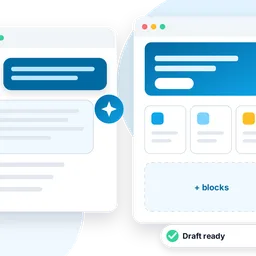
You can now build a website with AI without giving up control. In Cleitext the assistant does not paste a wall of HTML: it writes pages with the same blocks you use in the editor, picks the sections of the theme, and leaves a draft for you to check.

Connect your assistant in one minute
- Open AI assistants in the admin and copy the address of the site.
- In ChatGPT, Cursor or another MCP client, add a custom connector with that address.
- The assistant opens your site: sign in and choose Allow. Your password never leaves the site.
The connection uses the Model Context Protocol and OAuth, the same standards big services use. You can disconnect it at any time from the same page.
What to ask
- “Create an About us page with an opening section, three cards on what we do and a call to action.”
- “Write a post on our new opening hours, in a friendly tone, and show me the preview.”
- “Translate the Contact page into Italian.”
Before writing, the assistant reads the guide of the theme and the site’s patterns, so the result looks like the rest of your site. On this site, for example, it uses the sections of Canvas.
Safe by default
Everything the assistant creates is a draft. It acts with your permissions, so it can never do more than you; it publishes only if you allow it when you connect it; and every change ends up in the revisions and in the activity log.
From request to published page
A good request says who the page is for, what it must contain and the tone. The assistant answers with a link to the preview: open it, then fix a word or swap an image in the editor as you would on any page. When you are happy, press Publish. If something is not right, ask again: “make the opening shorter”, “add a section with prices”. The assistant changes the same draft, and the revisions keep every version, so you can always go back.
A tip: start with one page and look at the result before asking for the whole site. Once the assistant has seen what you like, the next pages come out closer to your taste.
Prefer not to use an external assistant? See the AI chat in the admin.
Comments
No comments yet.