Plesk extension
Cleitext Toolkit for Plesk
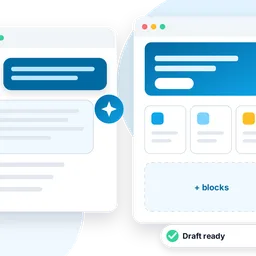
Install Cleitext on any domain of your Plesk server in a few clicks, then manage every installation from one page: sign in, update, back up and check, without touching the command line.
Free for up to three sites, €59 a year for more sites.

Like the toolkits you already know
Everything about your sites, in the panel
If you have used WP Toolkit, you will feel at home: the same idea, made for Cleitext.
Install in a few clicks
Choose the domain, the language and the administrator: the database, the configuration, the Node.js application in Plesk and the SSL certificate are set up for you.
All installations in one list
Version, status and available updates of every Cleitext site on the server, including the ones installed by hand, found automatically.
One-click login
Open the admin of a site without typing a password: the link works once and only for a minute.
Updates you can undo
Update with one click and follow the progress. If something is not right, go back to the previous version.
Backups and checks
Back up and restore the database and the files, and run the health and security checks of each installation.
Maintenance, plugins and themes
Turn maintenance mode on and off, see the plugins and themes of a site and switch them on or off.
The Toolkit updates itself
New versions install by themselves, checked before they run, and Plesk’s notifications tell you. You can turn it off and update with one click.
www and the bare domain
Visitors reach the site with or without www: the Toolkit sets Plesk’s SEO-safe redirect and puts www in the certificate.
For resellers and customers too
As with WP Toolkit, resellers and customers find Cleitext Toolkit in their panel and manage their own domains. You decide per service plan, and the license stays with you.
Databases listed in Plesk
Each site’s database appears under its domain in Plesk. If Plesk cannot see PostgreSQL, the Toolkit says why and can set it up for you.

Installation
From an empty domain to a working site
The Toolkit does, in order, what the installation guide asks you to do by hand, and shows each step as it goes.
- Downloads the release and checks its signature
- Creates the PostgreSQL database and its users
- Configures the Node.js application and the document root
- Creates the site and its administrator
- Requests a free Let’s Encrypt certificate, www included
- Leads www (or the bare domain) to the site

Every day
One page for each site
Sign in, update, back up, turn on maintenance, manage plugins and read the checks: all from the page of the installation, with a button on the domain’s card in Plesk too.
Download
Cleitext Toolkit 0.10.0
Released on 1 November 2026 · 354 KB · cleitext-toolkit-0.10.0-1.zip
SHA-256 fingerprint of the file:
b07e2d5b0feefbdb421a8620c11244e848ccbcee5c087a208f0b3c05fef9a0f0To check it, run sha256sum cleitext-toolkit-0.10.0-1.zip: the result must be the same.
Requirements
- Plesk Obsidian 18.0.55 or later, on Linux (tested on 18.0.81 with Debian 13)
- The Node.js Toolkit of Plesk, with Node.js 24
- PostgreSQL 16 or later, on the same server
- Admin access to Plesk
How to install
Step by step, from zero to your first site
A quarter of an hour, even if you have never installed a Plesk extension. Follow the steps in order.
1. Check the requirements
Log in to Plesk as administrator and check these three things first. The Toolkit checks them again before every installation and tells you what is missing.
Plesk 18.0.55 or later
On Linux. You see the version at the bottom of Tools & Settings, or with plesk version.
Node.js Toolkit with Node.js 24
In Tools & Settings → Updates → Add/Remove Components, add NodeJS support: it brings the Node.js Toolkit. Node.js 24 must be among the installed versions; the Toolkit tells you if it is missing.
PostgreSQL 16 or later
Add the PostgreSQL server component in the same place (version 16 or later). Then, in Tools & Settings → Database Servers, open the local PostgreSQL server and set its administrator user and password: this way the Cleitext databases also show up in Plesk.
2. Install the extension
Choose one of the two ways: the result is the same.
Option A · From the command line
Connect to the server over SSH as root. The quickest way is to install it straight from our address:
plesk bin extension --install-url https://cleitext.com/downloads/cleitext-toolkit/cleitext-toolkit-0.10.0-1.zipIf you prefer to check the file first, download it, compare its fingerprint with the one above, then install it:
cd /root
curl -fO https://cleitext.com/downloads/cleitext-toolkit/cleitext-toolkit-0.10.0-1.zip
sha256sum cleitext-toolkit-0.10.0-1.zip
plesk bin extension --install cleitext-toolkit-0.10.0-1.zip
The sha256sum line must print b07e2d5b0fee…, the same fingerprint as in the Download section. If it is different, do not install the file and write to us.
Option B · From the Plesk panel
Plesk only accepts uploaded extensions that are not in its catalog when you allow it. It is a one-time change: as root, open (or create) the file /usr/local/psa/admin/conf/panel.ini and add these two lines:
[ext-catalog]
extensionUpload = true
No SSH? Install the free Panel.ini Editor extension from the Plesk catalog and add the same two lines there.
- Download the extension with the button in the Download section
- In Plesk, open Extensions → My Extensions
- Click Upload Extension, choose the file and confirm
3. Your first steps
Open the Toolkit
Reload Plesk: Cleitext Toolkit appears in the left menu. Every domain card also gets a Cleitext button.
Install your first site
Click Install Cleitext, choose the domain, the site name, the language and the administrator, then follow the progress. At the end you get the address of the admin and the password.
Bring in the sites you already have
Cleitext sites installed by hand? Click Find installations: they join the list and you manage them like the others.
4. Updates and removal
The Toolkit checks cleitext.com once a day. When a new version is out, its page says New version available: one click downloads it, checks its fingerprint and lets Plesk upgrade it. From the command line:
plesk ext cleitext-toolkit --self-update
plesk ext cleitext-toolkit --self-update --apply
To remove it, use Extensions → My Extensions, or:
plesk bin extension --uninstall cleitext-toolkitYour sites keep working without it: each one runs in Plesk’s Node.js Toolkit. If you install the extension again, Find installations brings them back.
5. More than three sites?
Three Cleitext sites per Plesk server are free, with every feature. For more, buy a license key: open Cleitext Toolkit → License, click Enter a license key and paste it.
Licensing
Free to start, simple to grow
Every feature is there from the first site. A license is only needed to add a fourth Cleitext site on the same Plesk server.
After the purchase you get the license key by email: enter it in the License section of the Toolkit, or run plesk ext cleitext-toolkit --license --activate <key>.
Your sites are never blocked: if a license ends, the sites you already have keep working and you can still update, back up and sign in.
Free for up to three sites
Install and manage up to three Cleitext sites per Plesk server with every feature of the Toolkit.
€59 a year for more sites
As many Cleitext sites as you want on the same Plesk server, with updates and support.
Updates
The Toolkit keeps itself up to date
Once a day it checks cleitext.com for a new version. When there is one, you see “New version available”: one click downloads it, checks its SHA-256 and lets Plesk upgrade it. Your sites keep running.
Prefer the command line? plesk ext cleitext-toolkit --self-update checks, --self-update --apply upgrades; or plesk bin extension --upgrade-url with the address of the new file.
Buy a license
More than three sites? Write to us
Tell us your email and the host name of your Plesk server. We reply with how to pay, then send you the license key by email: €59 a year per server, for as many sites as you want.
You can also write to [email protected].
Thank you: we will reply soon by email.
The message was not sent. Check the fields and try again.
The spam check did not pass: please try again.
Questions
Does it change my other sites?
No. It acts only on the domains where you install Cleitext, and never on the ones managed by WP Toolkit or the Node.js Toolkit.
I already installed Cleitext by hand: can I use it?
Yes. “Find installations” adds the existing sites to the list.
What if I remove the extension?
Your sites keep working. Each site runs in the Node.js Toolkit of Plesk, where you can see and change it in Websites & Domains → Node.js: the extension only helps you manage it.
Can an update break my site?
Cleitext is tested at every change, makes a backup before updating and can go back to the previous version with one click.
Does the Toolkit send data to cleitext.com?
Only if you want. In the installation wizard and in the Toolkit’s settings you can turn on “Help Cleitext: send anonymous install statistics” (it is off by default). Once a day it then sends how many Cleitext sites the Toolkit manages, its version, the Plesk version and a random server id: no domains, emails or IP addresses. Turn it off and the record is deleted. Details in the privacy policy.
Which versions are supported?
The latest release of the Toolkit and the previous one get fixes, security fixes included. Our security policy explains how to report a problem and how fast we answer.