Free plugin
Design your pages by dragging
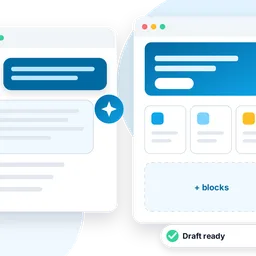
Fresco lets you build a page the way you picture it: drag in a section, drop a heading, a picture or a button, and change colors and spacing while you watch. No code, and the page looks just like your site.
Free, with no limit on pages or sites. Coming from Elementor? You already know how it works.
Want more? Fresco Pro, from €67 a year.

What you get for free
Everything to build beautiful pages
A home page, a landing page for an offer, an “about us” page: you put it together yourself, piece by piece.
Drag and drop
Put sections on the page, then fill them with what you need, in rows, columns or grids. Drag pictures straight from your computer onto the page, too.
Lots of ready pieces
Headings, text, pictures, buttons, videos, galleries, maps, testimonials, tabs, accordions, counters, the menu, floating chat buttons, a “link in bio” page and more.
Right on every screen
Up to six screen sizes, from phone to widescreen: bigger text here, something hidden there. Hidden pieces stay in view while you edit, marked so you know.
Your style, once
Site colors and fonts, text and headings, links, buttons, pictures and form fields are set in Site settings. Change them and every Fresco page follows.
Effects that catch the eye
Rotate, move, scale and tilt any piece, also when the mouse is over it. 40 entrance animations, 27 hover effects, masks, 18 shape dividers and background slideshows.
A library of templates
Save a section or a whole page, find it by name, preview it on computer, tablet and phone, then insert it. Move it to another site with a file.
An editor you already know
Full screen, panel on the left, the page on the right, as in Elementor: Structure window, Finder, right-click menu, shortcuts, typing right on the page, a dark theme if you like.
Nothing to fear
The History panel lists every step and keeps the older revisions. If another plugin gets in the way, Safe mode opens the editor with Fresco alone.
Only what you use
The Element manager counts where each widget is used and lets you turn off the ones you never need, for a tidier panel. The editor speaks English and Italian.

Site settings
Decide the look once
Body text, links and each heading level, with size, weight, spacing and line height for every screen. Buttons, pictures and form fields get their style here too.
- Global colors and fonts, used everywhere with one click
- Background, page width and lightbox for the whole site
- Change a value and every page follows

Structure
Find any piece in a second
The Structure window shows the page as a tree. Dock it on the right and the page makes room: click a line to select that piece, drag it to move it.
- Ready-made layouts: one column, two, three, rows and grids
- Drop targets that stay still while you drag
- Keyboard shortcuts for everything, Ctrl+I for the Structure

Every screen
See it as your visitors will
Switch to tablet or phone and the page shrinks to that size, with its exact width and zoom. Every setting with the little screen icon can change for that device only.
- Up to six breakpoints, including laptop and widescreen
- Entrance animations chosen per device
- Ctrl+Shift+M goes through all the screens

Effects
Movement and depth, no code
In the Advanced tab of any piece: rotate it, move it, scale it, tilt it or flip it, normally or when the mouse is over it, with a smooth transition.
- Borders, corners and shadows that change on hover
- Masks, text outline and shadow, overlays with filters
- Section backgrounds as a slideshow, 18 shape dividers

Right-click
Everything at hand
Right-click any piece to duplicate it, copy it, paste only its style, or save it as a template. Click a text and type: the side panel follows as you write.
- Paste from another site: copy a section on one Cleitext site, paste it on another
- Typing right on the page in boxes, lists, tabs, counters and more
- A richer text editor, with formats, alignment and media

Templates
Look first, then insert
The library keeps your saved pages and sections. Search them by name and open a preview on computer, tablet or phone before putting one on the page.
- Rename, delete, import and export as a file
- The same tools in Fresco → Templates in the admin

A normal page
Only the editor is different
A page made with Fresco is an ordinary Cleitext page. Everything you already use keeps working.
- Revisions, translations and site search
- A full-width or blank page, without the theme’s header and footer
- Blocks of your other plugins, such as Cleishop’s product grid, with their plugin’s name on them
- Updates tested at every change: your pages stay as they are
- Want more? Fresco Pro adds headers and footers, popups, forms, loops, dynamic content and shop widgets

Want more?
Fresco Pro
Build the whole site with Fresco, not only its pages: header, footer, popups, forms and content that fills itself.
- Theme Builder: your own header, footer, post and product pages
- Popups with triggers and conditions
- Forms, loops and 36+ dynamic tags
- Shop widgets for Cleishop and 50+ more widgets
From €67 a year, updates and support included.
Get started
Ready in a few minutes
Install it
In Plugins → Add New, find Fresco, then click Install and Activate.
Open a page
In the admin, open a page and choose Edit with Fresco, or create a new page and pick Fresco as its editor. On your site, the bar at the top of a Fresco page has Edit with Fresco too.
Build and publish
Drag a Container onto the page, then the pieces you want inside it. Click any piece to change its content and style, then Publish.
Questions
Do I need to know how to code?
No. You drag pieces onto the page and change them from a side panel, while you see the result.
Does it work with my theme?
Yes: you see the page inside your site’s own design. You can also choose a full-width or blank layout for a single page.
I am moving from WordPress. Can I keep my pages?
Yes. The WordPress importer turns Elementor pages into Fresco pages, effects and animations included, and brings along the site settings too: global colors and fonts, breakpoints, theme style, logo. With Fresco Pro, headers, footers, popups and global widgets come along with their conditions.
Will an update break my pages?
No. Every version of Fresco is tested at every change, on real pages, before it reaches you. When you update, your pages look exactly as before, and the new options are simply there to use.
What is the difference with Fresco Pro?
Fresco is free and complete for building pages. Fresco Pro is paid and adds the parts of the whole site (header, footer, product pages), popups, forms, loops, dynamic content, shop widgets and more widgets.
Goes well with
Plugins that work well together
Prisma
Design blocks with a live preview in the editor: containers with backgrounds and shape dividers, headings, images with masks, info boxes, buttons and image galleries with a lightbox, responsive and animated. Converts Spectra blocks when importing from WordPress.
Diorama
Sliders and hero sections, quick to make and light on your pages: pick your photos, write a title and a button, done; or place headings, texts, buttons, images and icons on the slide, with a layout for each device. Entrance effects, transitions, video backgrounds, Ken Burns, ten ready-made templates and the latest blog posts as slides. Accessible by default, responsive images, no layout shift, a tiny script only where a slider is. A block, a Fresco widget and a shortcode. One slider per site; Diorama Pro adds more.
Layout Import
Moving from a WordPress theme whose page builder left codes like [av_section] in your pages? Turn those pages into ordinary blocks you can edit, with sections, columns, texts, images and buttons.
Read more
Community
Cleitext grows with you
Found a problem, or missing a feature? Tell us on GitHub: every report is read and taken care of. And if you like Cleitext, leave a star: it helps others find it.
Free, open source, yours
Like every plugin in the official catalog: GPL license, no subscription, no limits.